MySQL and an Admin Tool (e.g., phpMyAdmin) needs to be installed on a server. See also the tips for installation (German)
Please contact your IT service to clarify how to operate the database safely.
The provided MySQL/Maria database needs to be imported into the installed MySQL and the provided *.zip archive needs to be copied and unzipped in the respective host folder.
Navigation - General functions
As a user, you can also use the navigation buttons from your browser. There might be the request to 'resubmit the form', which you need to accept.
As an admin, that would not be recommended as resubmitting a form might lead to an error.
Cancel / Back
On top of each page a navigation button to previous page can be found:
Back
It cancels all changes done on that respective page.
Edit a row
In some of the views, the content is editable. You can find a blue underlined text in the column 'Edit':
Edit
After clicking on the link, a new view will open, where the details can be changed.
After changing, the button
needs to be pressed to save the changes in the database.
Upload / Download Files
In some of the views, files can be uploaded. You can find a blue underlined text in the column 'Upload / Download':
Upload
An uploaded file will get a revision number as extension of the filename.
If a file is already uploaded with the same name, it will get new revision number as extension of the filename.
In some of the views, files can be downloaded. You can find a blue underlined text in the column 'Upload / Download':
Download
A menu will pop up, where the file to download can be selected. The file will be downloaded to the download folder on your computer, which is same as the standard folder used by your browser.
Insert a row
In some of the views (e.g. when a list of projects is displayed), a row can be added to a table (e.g. to add a new project). You can find a button most probably at the bottom of a table, which needs to be pressed to insert a row in the database.
Main Navigation Menu at the bottom of each webpage
At the bottom of each page a navigation menu be found:
Startpage will you guide every time back to the main page.
Logout will delete the temporary Session File. It is not required to log out, as the temporary Session File will be also automatically deleted, when closing the webbrowser.
Contact is an optional page
Impressum is a legal requirement in Germany, when the webside is used in the www. It is not required when you use it in your internal network or via VPN.
Login
The database is accessed via WebBrowser, the interface is displayed below:
At the bottom of each page a navigation menu be found:
Startpage will you guide every time back to the main page.
Logout will delete the temporary Session File, which will be also automatically deleted, when closing the webbrowser.
Contact is an optional page
Impressum is a legal requirement in Germany, when the webside is used in the www. It is not required when you use it in your internal network or via VPN.
User profiles
There are three different kind of user profiles defined:
Admin
User
Manager
Different views will be displayed according the assigned profile.
Profile 'Admin'
The admin can
create, update or delete a user.
After login, the main menu is shown with the options for the respective profile.
Main menu option 'Create, update or disable user'
After pressing the button 'View', a table is shown with all user.
To reset the Password, press 'Reset'. The password is than reset to the standard password.
After pressing the button 'Edit', the respective user can be updated.
Main menu option 'Update the content of templates'
The admin can here
create, update or disable a training and assign it to the respective jobs.
create, update or disable a job description.
To add a career for the Admin, please add a new user with a different EMail.
Update Job Description
At the right side, there are links 'Edit' to update the respective row and 'Active / Inactive' to deactivate / activate a row.
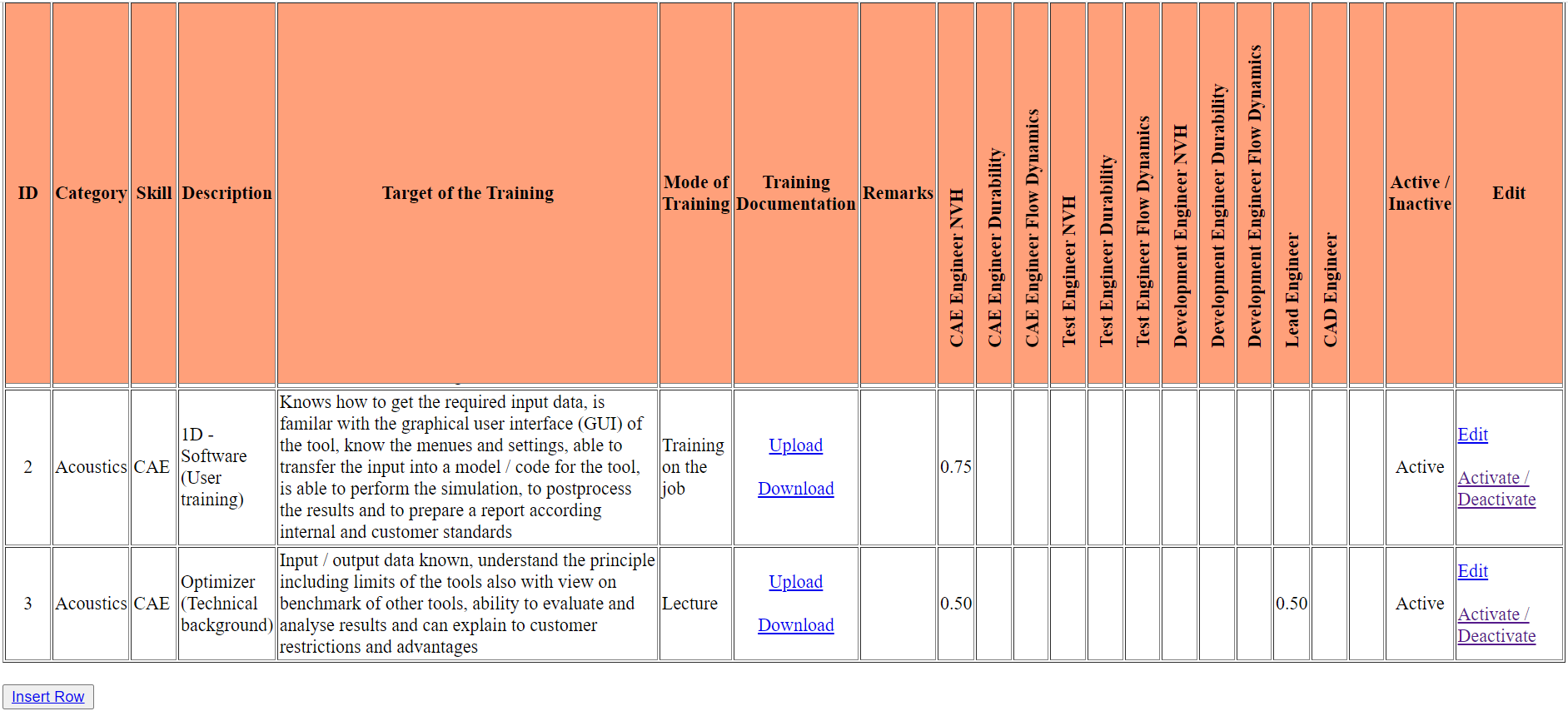
Update Training Plan
At the right side, there are links 'Edit' to update the respective row and 'Disable Row' to make a row obsolete.
At the bottom of the table, there is a button 'Insert Row', if a new training needs to be added.
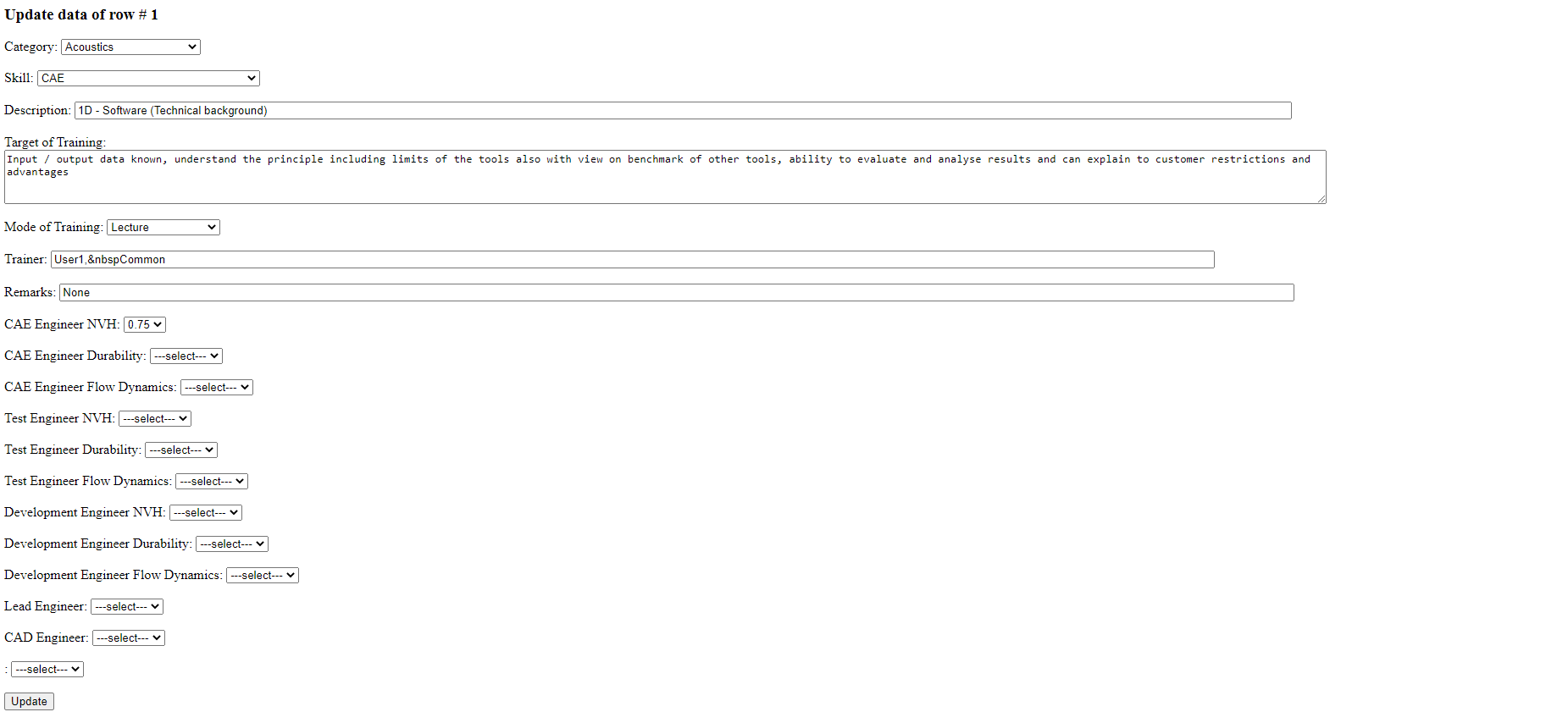
After pressing the link 'Edit', the below menu comes up, where the admin can change the text and assign the courses to the respective job titles.
The assignment will be done with a percentage of 0, 25, 50, 75 and 100%, where following understanding is proposed (can vary from company):
0% (or empty): it is not required for this position
25% Basic understanding
50%: Intermediate knowledge, can apply knowledge under supervison
75%: Professional knowledge: works independently
100%: Expert knowledge, acts as trainer
Profile 'User'
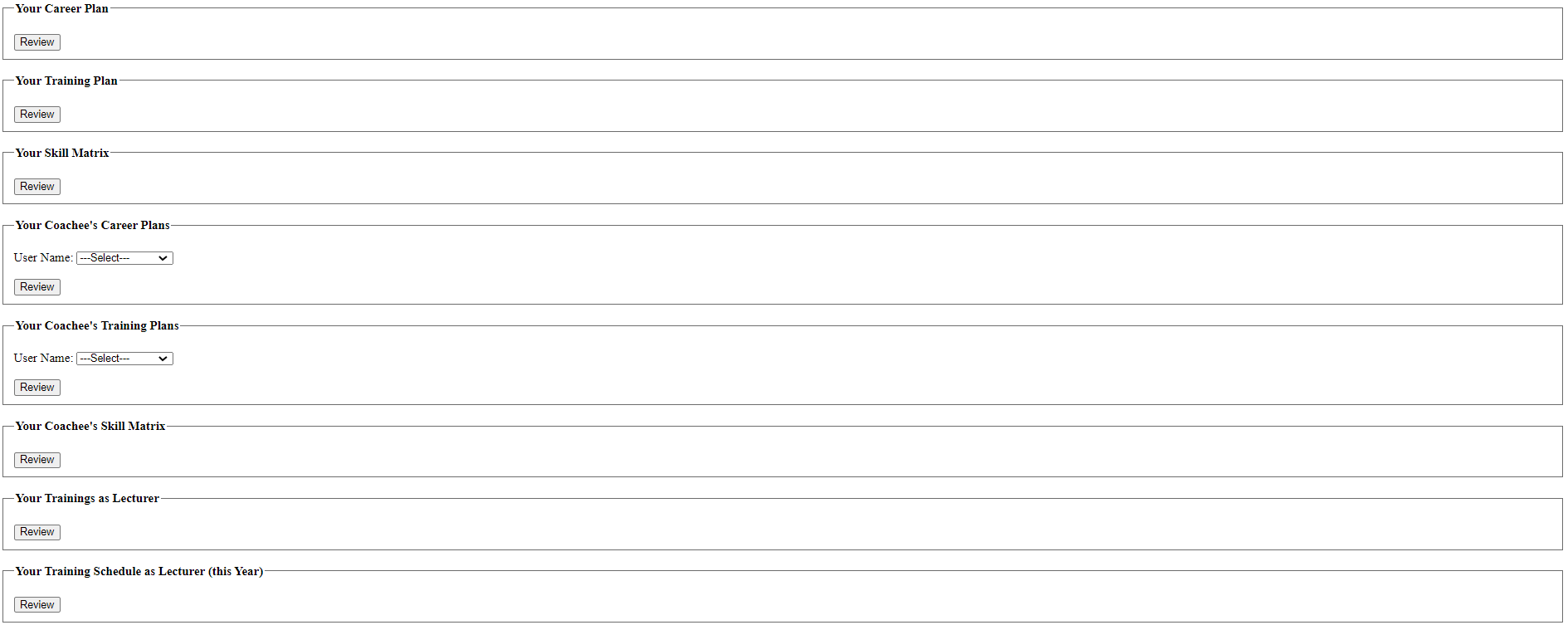
The user can see and (at some of the documents) update his
Career Plan
Training Plan
Job Description / Skill Matrix
Training Plan of his Coachees
Skill Matrix of his Coachees
His offers as Trainings as a lectures
The demand on his lectures for this year (based on the input on everybodies Training Plans)
Function 'Coachee'
When a user uses the database the first time, a career plan (under 'Your Career Plan') has to be finalized.
It will generate automatically a Training Plan (under 'Your Training Plan'), which needs to go through a process of
'Self-Assessment' and 'Coach-Assessment', before a Skill Matrix is generated based on that data.
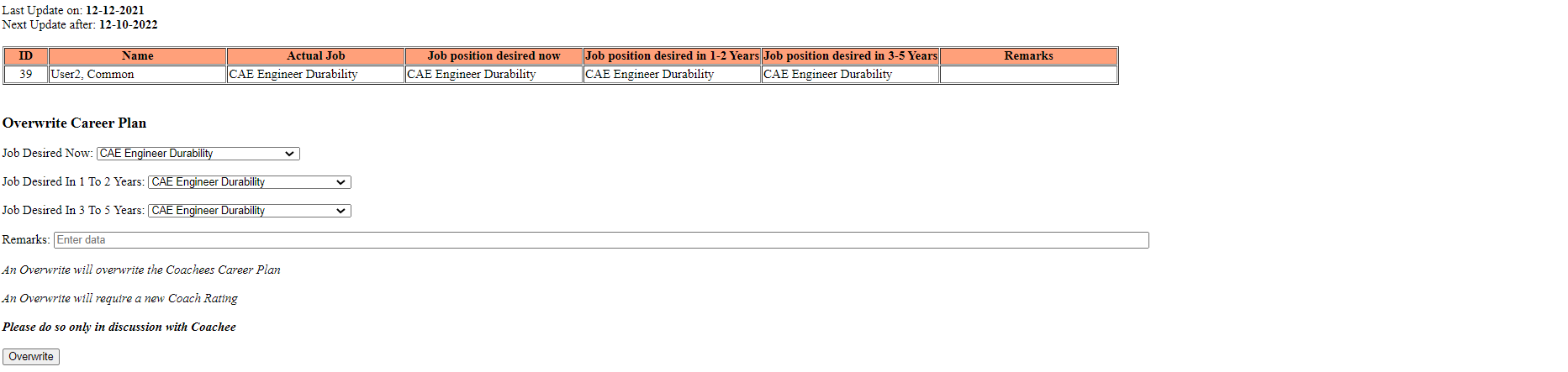
In the menu 'Your Career Plan', the user can select
A job, which he desires now
A job, which he desires in 1-2 Years
A job, which he desires in 3-5 Years
The Job Titles can be selected from a drop down menu (Note for the admin: it can be found in the SQL database under dropdown_list), where up to 50 Job Titles can be listed.
It would be feasible, to increase the amount of job titles with some code adaptation.
But, it is currently recommended to set up a seperate database for seperate business units or logical units to reduce the administrative effort for the admin.
General remarks:
As a user, you should keep a realistic Career Plan in your mind.
Over-ambition might lead to frustration, same as 'not taking this process serious' and expecting recognition outside this process.
The driving force behind learning is you, a company can only offer training and support.
A development plan is not a promise for a career, it is a supporting instrument.
As Einstein said, planning replaces coincidence by error. Still, having a plan gives a direction vs. stumbling through work life...
After pressing the button 'Update' the career plan is froozen for the next 10 months and a generic training plan will be automatically generated.
Please note: after pressing the button, it will disappear and be available in the next cycle of Career Planning after 10 months.
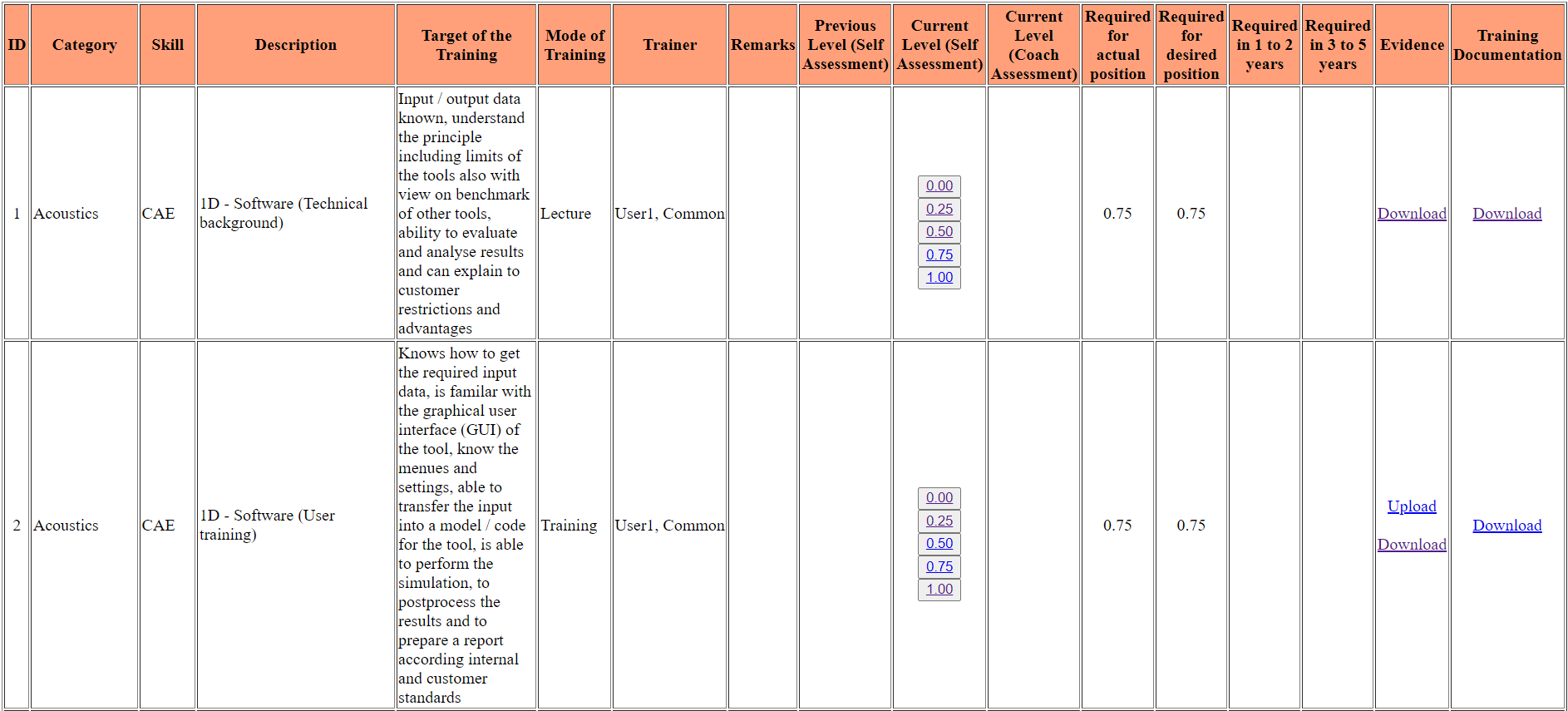
Going back to the main menu and follow 'Your Training Plan', the training plan will open up and allow the user to
perform a Self-Assesment.
Notice: Please work from the top and do not do start the Self-Assesment in the middle, as the last rated row will be always on the top of the table.
download evidences and training material
upload evidence for trainings, where the 'Mode of Training' is not Lecture (as for Lectures, the trainer will upload the evidences)
At the bottom of the table, there is a 'Freeze' button, which needs to be pressed after the Self-Assessment.
Please note: after pressing the button, the buttons '0.00', '0.25', '0.50', '0.75', '1.00' and 'Freeze' will disappear.
They will be available in the next cycle of Self-Assesment after 10 months.
The training plan is your guideline during the next months. Please upload evidences from trainings,
which are not 'Mode of Training' equal to Lecture.
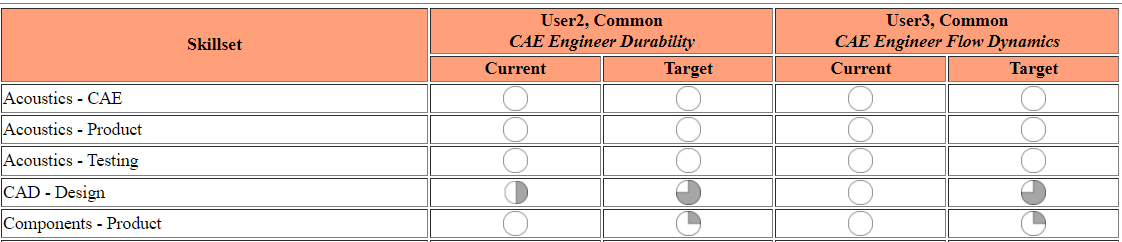
Going back to the main menu and follow 'Your Skill Matrix', it displays a summary of the Requirements for a certain Job Position vs. the Current from a Self Assesment / Coach Assessment.
In above Skill matrix, the 'Current' is empty, as the Coach Assesment is still pending.
Function 'Coach'
The user can
overwrite the Coachees Career Plan (in alignment with the Coachee) to align the company strategy with the Coachees Career plan
perform a Coach Assesment for Coachess, where he is assigned as Coach
get an overview of the skills and the gaps of his Coachees
The menu and the functionalities for the Career Plan are similar to the menu as the Career Plan of the Choachee.
A company strategy with view to headcount is in most cases highly confidential to avoid rumours and confusion among the staff.
Still it needs to be aligned with the Career Plans of the employees.
Therefore the function 'manager' has a seperate view with the consolidated data to align
the startegy with the Coach,
before a review meeting about the Career Plan with its Coachee,
after the Career Planning of its Coachees.
The menu and the functionalities for the Coach Assessment are similar to the menu as the Self-Assessment of the Choachee in the section Training Plan.
It is mandatory to perform a Coach Assesment together with the Coachee on Basis of his Self-Assessment.
The evaluation is again done by pressing the buttons '0.00', '0.25', '0.50', '0.75', '1.00', which will disapear after 'Freeze' is pressed.
Going back to the main menu and follow 'Your Coachee's Skill Matrix', an overview of the Current vs. Target Skills for all Coachees is given.
Function 'Trainer'
The user can
create a training curriculum, where he will be assigned as trainer
update, disable or enable training curriculum, where he is assigned trainer
upload evidence and training material for his training curriculum.
Starting from the main menu and follow 'Your Trainings as Lecturer, an overview of your assigned lectures is given.
Following functionalities are given:
Upload / download of training documentation
Deactivate / Activate the respective training (e.g. when it became obsolete, or a trainer will not be longer available due to change in position)
Assign a percentage vs. job title. Note without that, the training will not show up for that respective Job Position in their training plan.
Edit the respective text in the row.
At the bottom of the page a button is given to insert a new row.
Back to the main menu and follow 'Your Training Schedule as Lecturer (this Year), gives an overview of your potential lectures in the current year.
Following functionalities are given:
The field in the column 'potential participants' of the respective row, can be used to copy + paste into a invitation of your email program (e.g. outlook) to schedule a lecture.
Edit the respective text in the row.
Upload / Download Evidence. The Evidence should consists at least of a participant list, it can also consists of certificates.
The participants will not have an individual access to the data. All participants will have access to that folder, therefore It is recommended to use YYMMDD_Filename.Extension as naming of the file, where 'YYMMDD' ist the actual date and 'Filename.Extension' can be choosen by the lecturer.
Profile 'Manager'
The manager can
Define a headcount strategy and see whether it is aligned with the current development planning of the different employees.
A deviation of up to 20 -30% seems acceptable, dependent from employee attrition rate, dynamic of the changes in a company etc. Any further alignment is then to be done outside this tool by sensitising the different coaches to the topic
Dependent on the company policy, it is advised to share the headcount plan at least with the coaches.
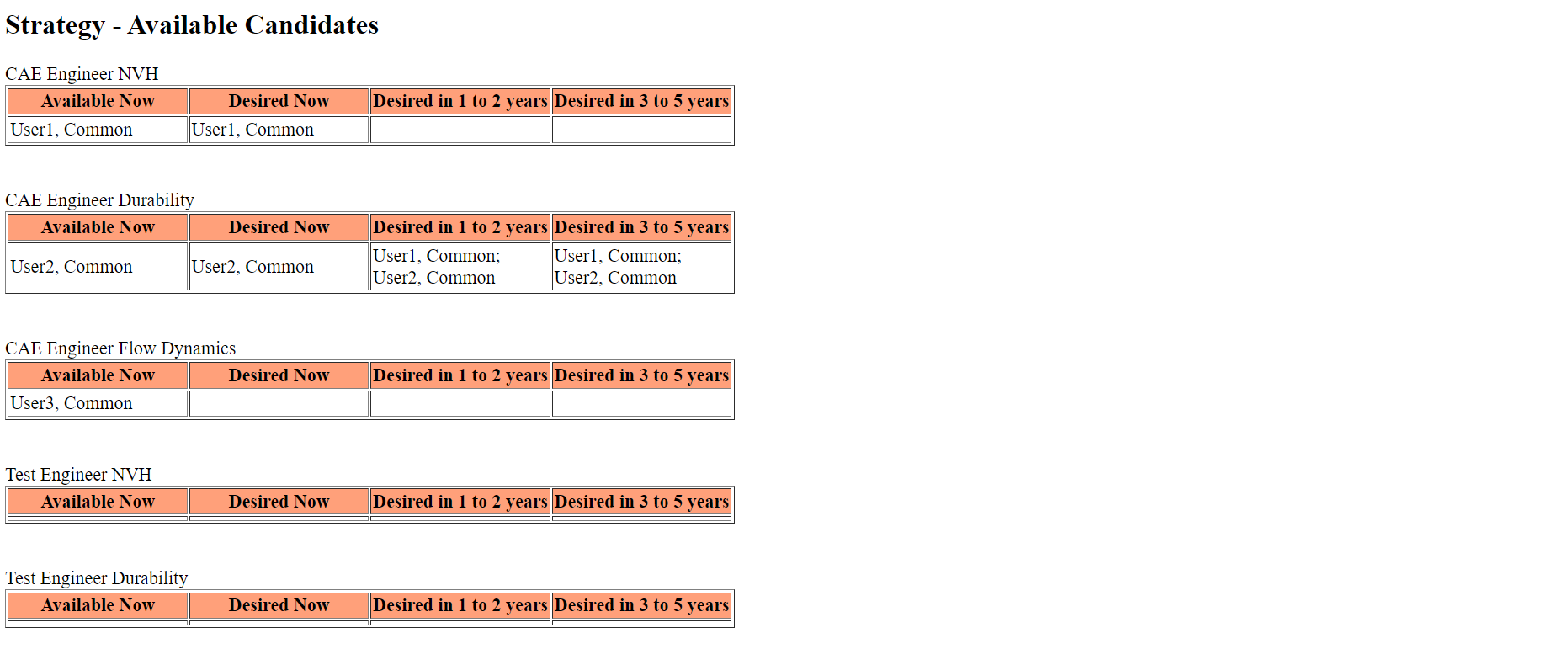
See the available candidates for the respective functions.
Monitor the progress of the Coach Assesment.
See the Skill Matrix for all employees
Starting from the main menu and follow 'Strategy People Development vs. Actual People's Choice', leads to the below menu.
Back to the main menu and follow 'Identify Talents Now', leads to the below menu.





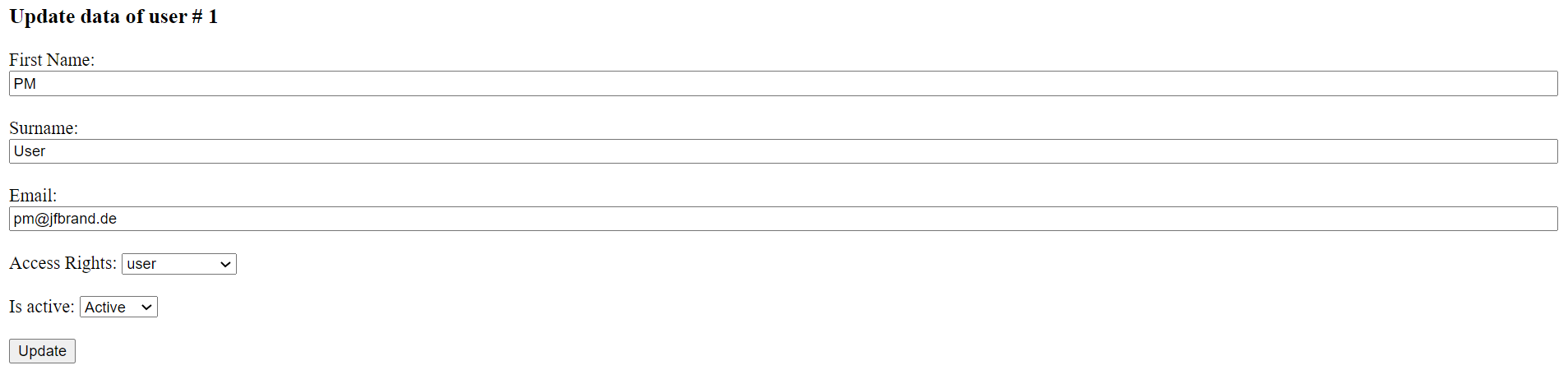



 After pressing the link 'Edit', the below menu comes up, where the admin can change the text and assign the courses to the respective job titles.
The assignment will be done with a percentage of 0, 25, 50, 75 and 100%, where following understanding is proposed (can vary from company):
After pressing the link 'Edit', the below menu comes up, where the admin can change the text and assign the courses to the respective job titles.
The assignment will be done with a percentage of 0, 25, 50, 75 and 100%, where following understanding is proposed (can vary from company):